Open Safari and go to your dashboard
Make sure you're using Safari on iPhone - Chrome doesn't support home screen apps the same way. Log in if prompted, then you should see your dashboard.
Must be Safari, not Chrome or another browserTap the Share button
At the bottom of Safari, tap the share icon - it looks like a box with an arrow pointing up. A menu will slide up from the bottom.
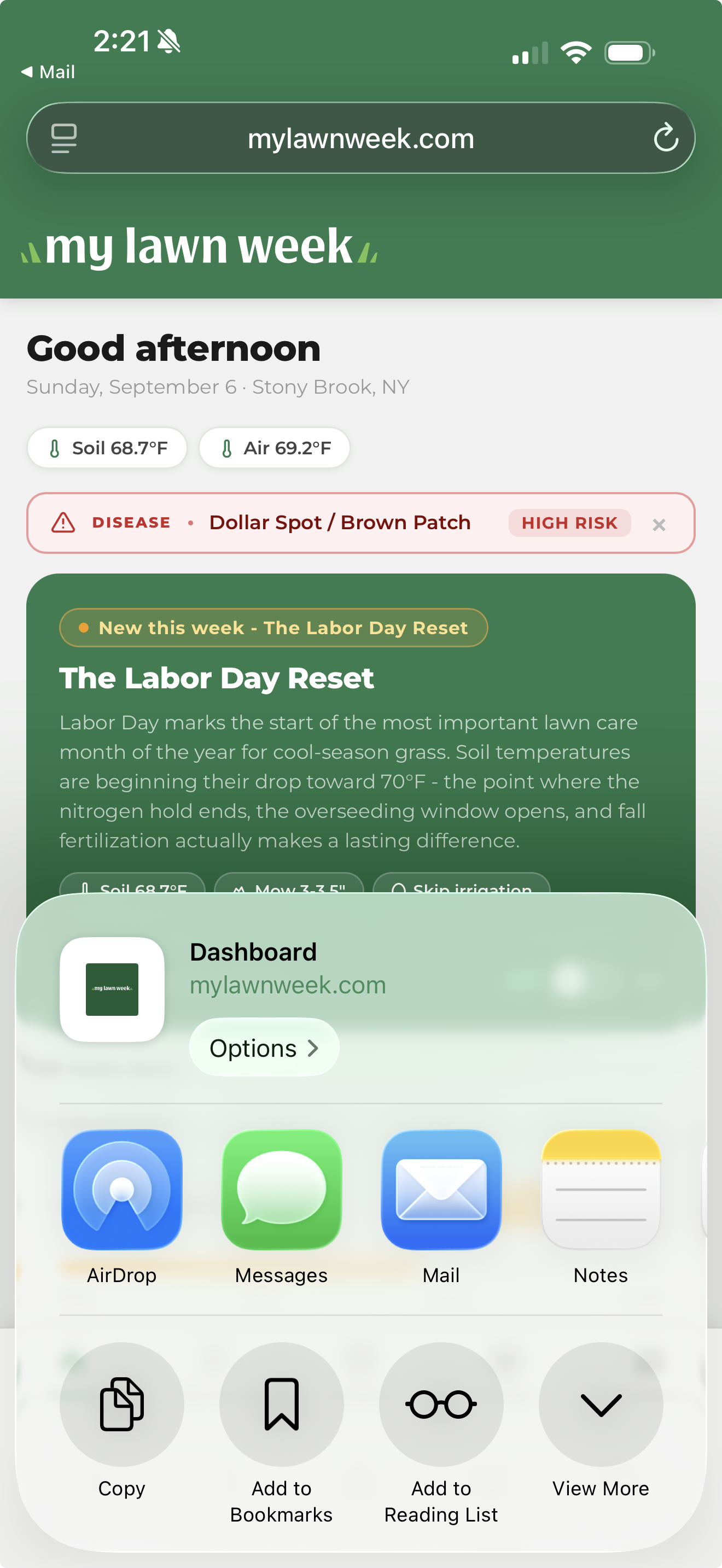
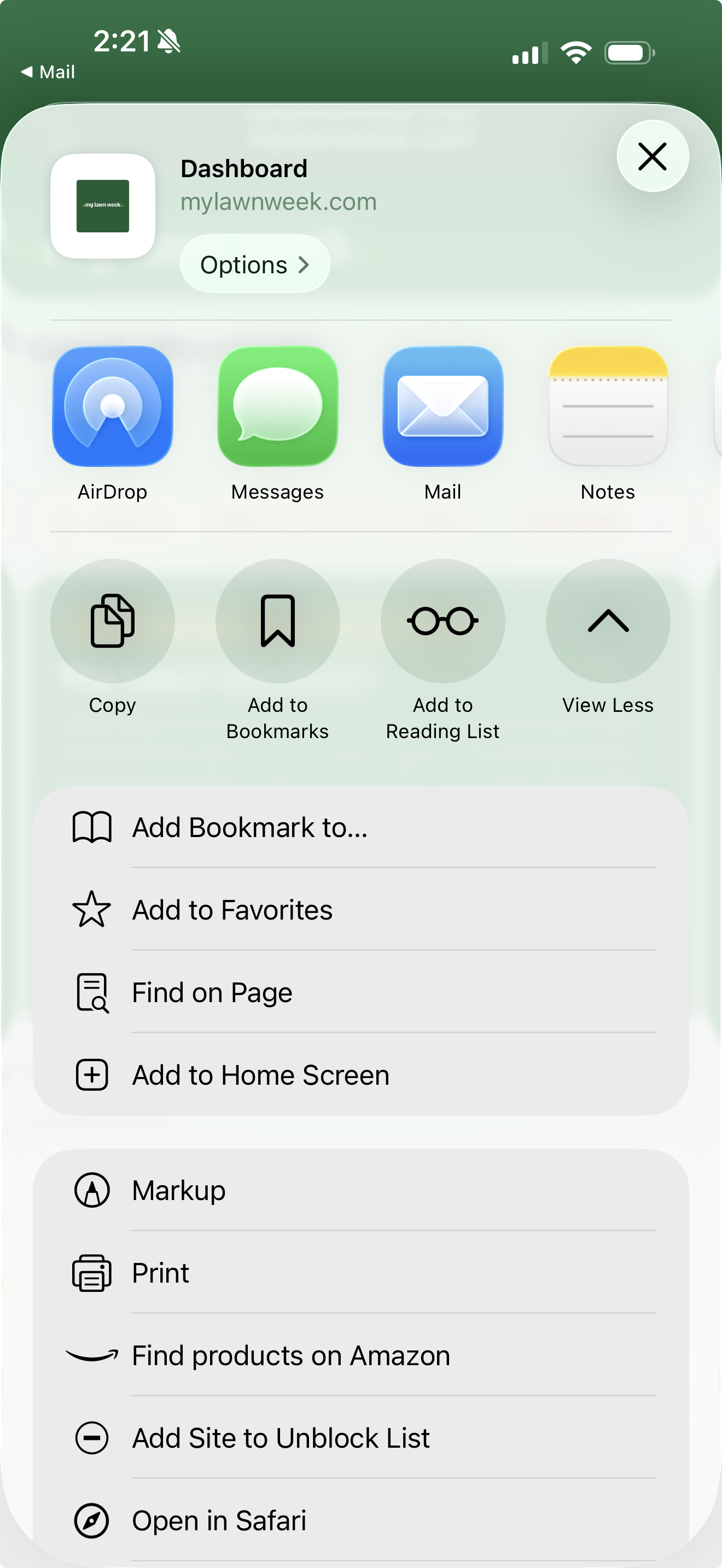
Tap "Add to Home Screen"
Scroll down in the share menu until you see Add to Home Screen. Tap it.
Tap Add
The name will be set to MyLawnWeek. Make sure Open as Web App is toggled on - this is what makes it open without the Safari browser bar. Then tap Add in the top right.
"Open as Web App" must be ON for push notifications to work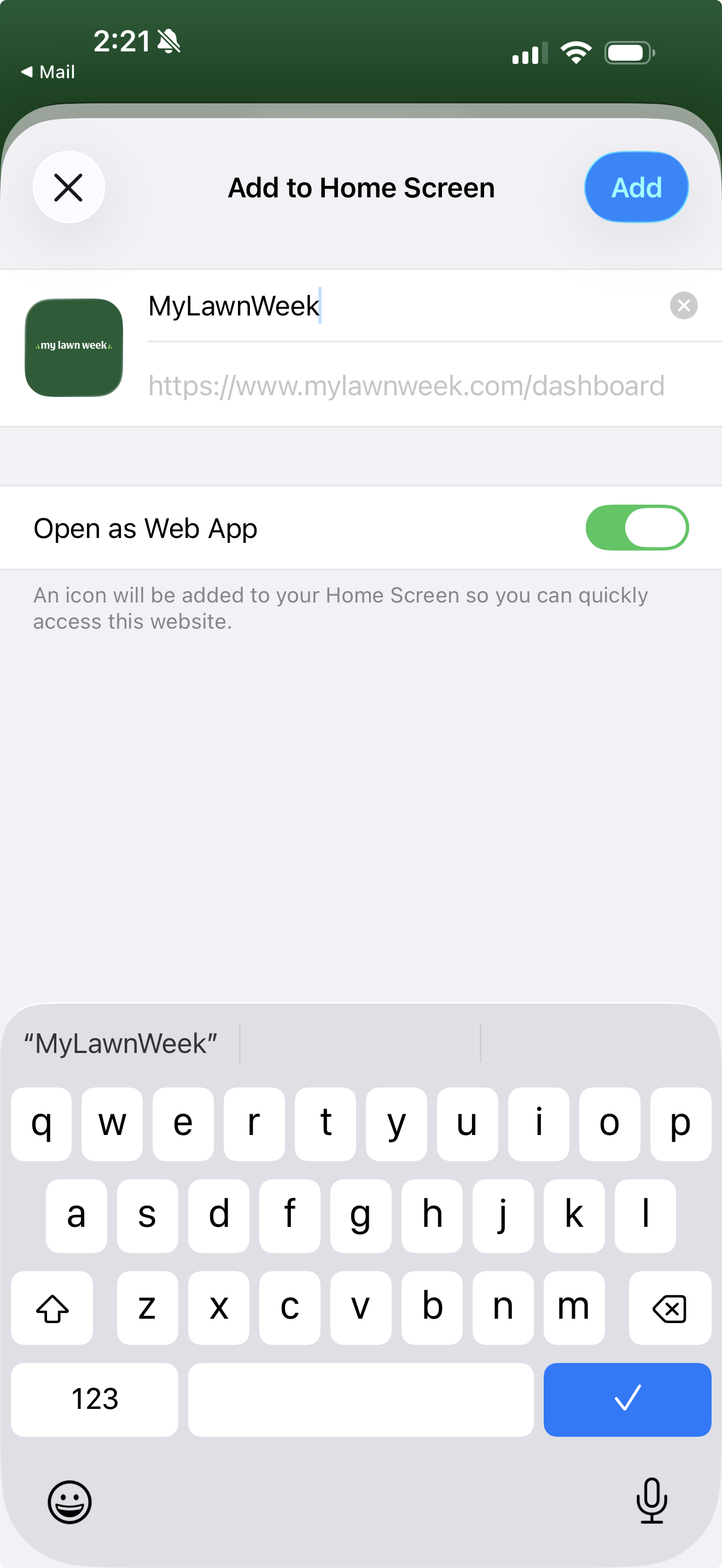
Open the app from your home screen
Find the MyLawnWeek icon on your home screen and tap it. A green banner will appear at the bottom of the dashboard asking to enable notifications.
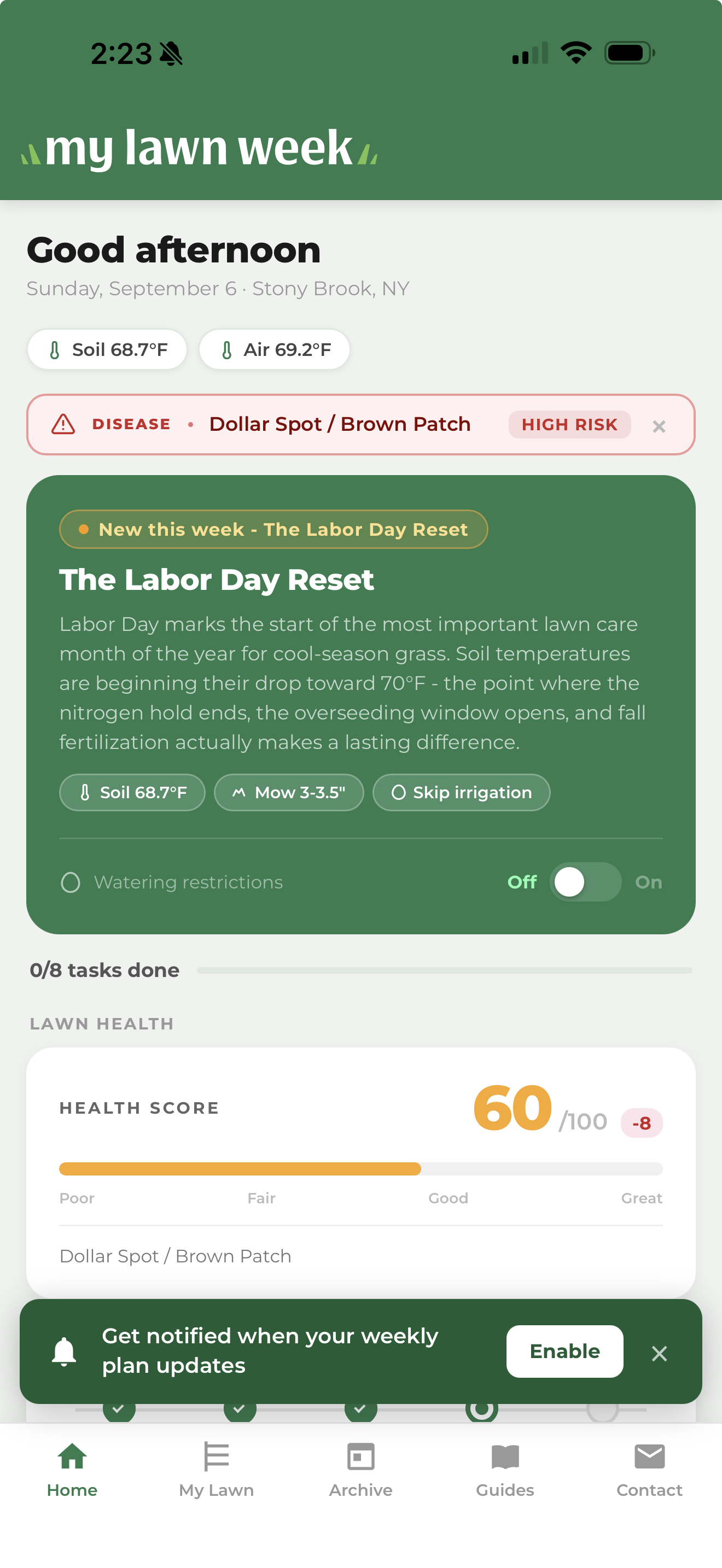
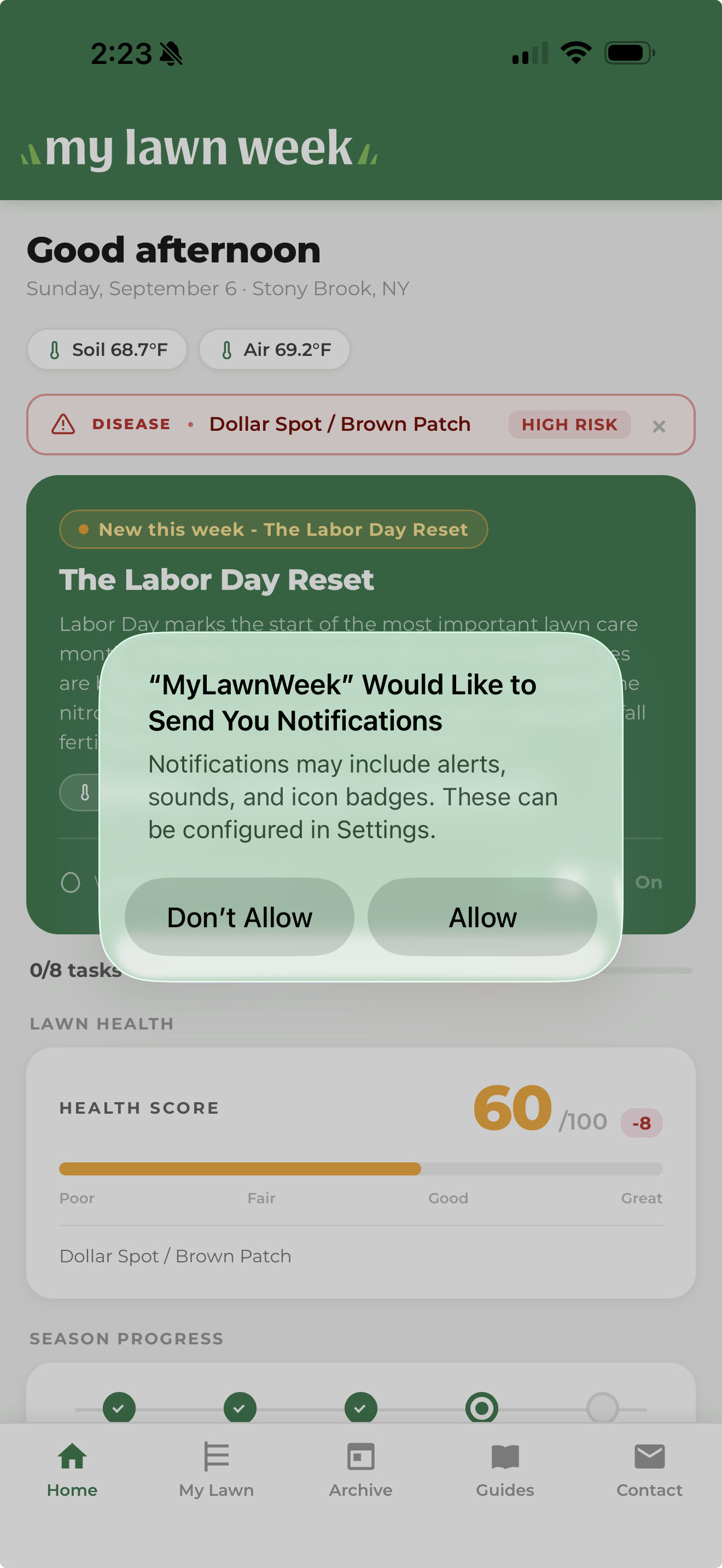
Tap Enable, then Allow
Tap Enable on the green banner, then tap Allow on the system dialog that appears. That's it - you'll be notified as soon as your weekly plan updates.
Open Chrome and go to your dashboard
Make sure you're using Chrome on Android. Log in if prompted, then you should see your dashboard.
Must be Chrome - other browsers may not support home screen installationTap the three-dot menu
Tap the ⋮ icon in the top right corner of Chrome. A menu will drop down.
Tap "Add to Home Screen" or "Install app"
You'll see either Add to Home Screen or Install app in the menu - both do the same thing. Tap it.
If you see "Install app", Chrome has detected the app is installable - tap itTap Add or Install to confirm
A dialog will appear showing the app name MyLawnWeek. Tap Add or Install to confirm. The icon will appear on your home screen.
Open the app from your home screen
Find the MyLawnWeek icon on your home screen and tap it. It will open without the Chrome browser bar. A green banner will appear asking to enable notifications.
Tap Enable, then Allow
Tap Enable on the green banner, then tap Allow on the system dialog that appears. That's it - you'll be notified as soon as your weekly plan updates.
You're all set
Your lawn plan is ready. From now on, you'll get a notification each week when it updates - no email needed.